

My little window on internet allowing me to share several of my passions

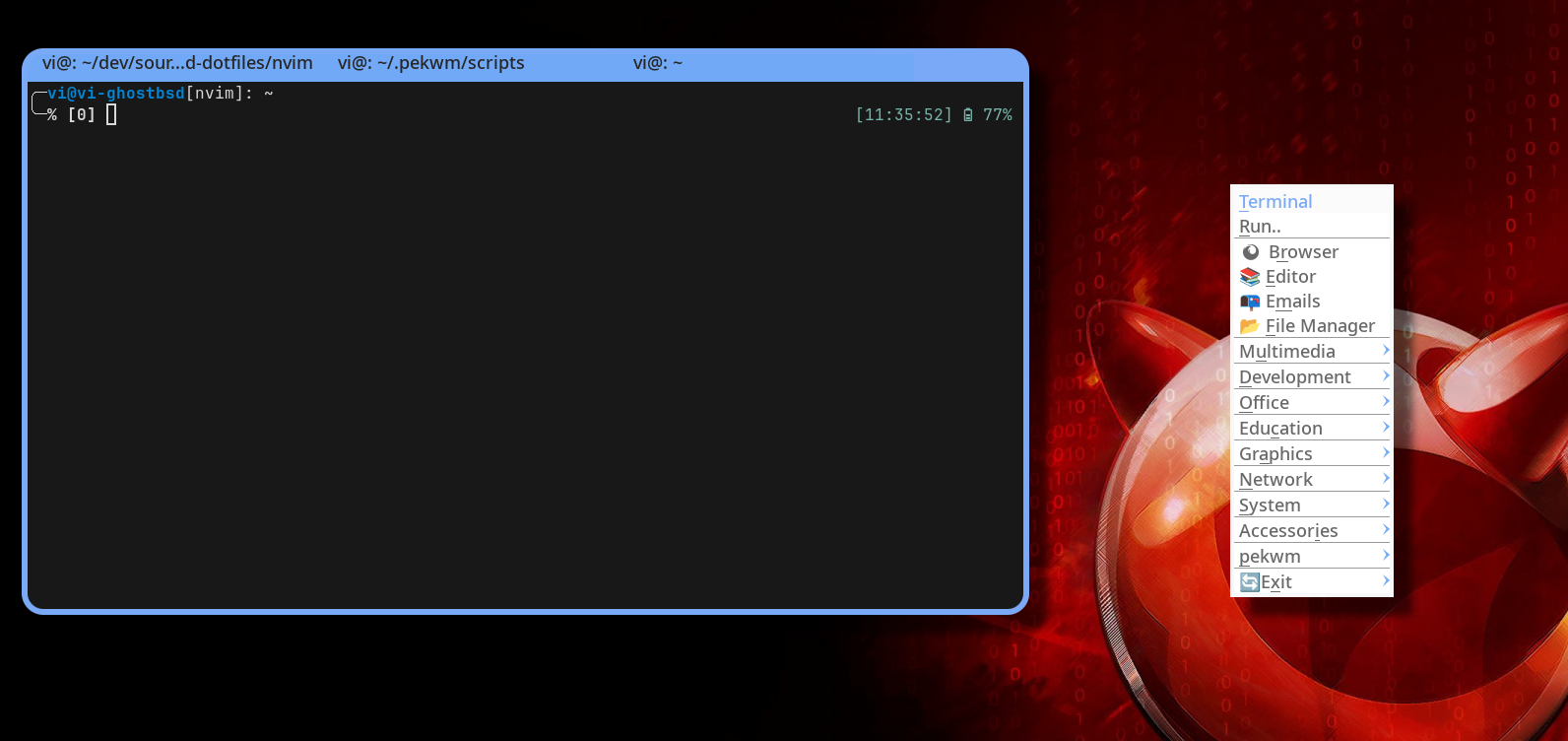 Lightweight, fast, and endlessly customizable, that’s what pekwm offers for FreeBSD systems.
But what really makes my setup useful for me is the easy integration of small scripts we can build around it.
From session restore to dynamic menus, brightness control, and even a quirky lock screen,
this desktop has grown into a personal environment that feels both minimal and complete.
Lightweight, fast, and endlessly customizable, that’s what pekwm offers for FreeBSD systems.
But what really makes my setup useful for me is the easy integration of small scripts we can build around it.
From session restore to dynamic menus, brightness control, and even a quirky lock screen,
this desktop has grown into a personal environment that feels both minimal and complete.
It's a window manager, like many others, but with tons of shortcut keys which facilitate the day to day use.
At the end, the usage of the mouse is marginal, but really easy to use.
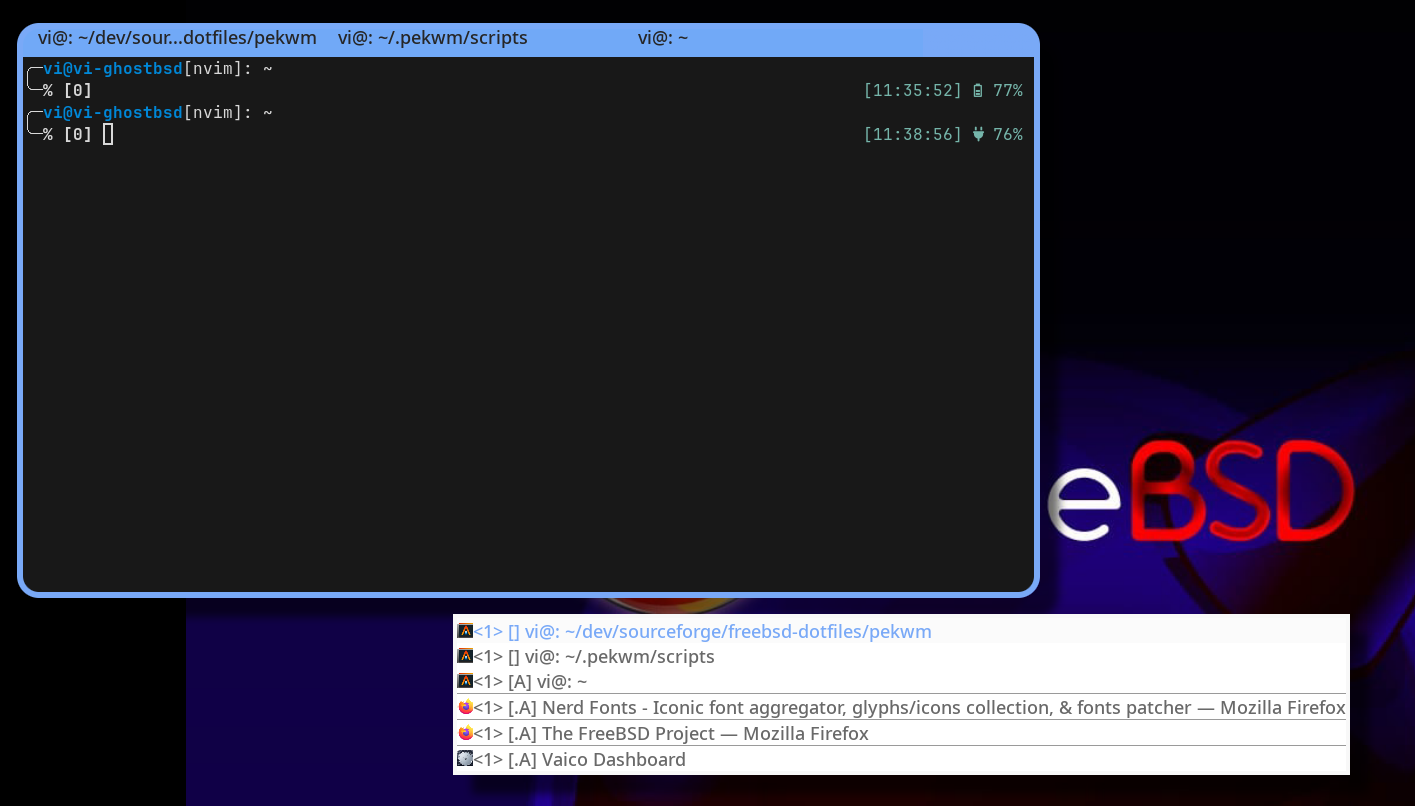
I'm a longtime user of Openbox on my OpenBSD laptops, I like his lightweight and flexibility. But this is no more maintained or very seldom changes.
When I first started experimenting with lightweight window managers on FreeBSD, pekwm quickly became one of my favorites. It combines speed, flexibility, and simplicity while leaving room for custom scripts and tweaks that make the desktop feel truly mine. Out of the box, pekwm already offers the essential features you’d expect from a tiling or stacking window manager: configurable keybindings, themes, window grouping, mouse gestures, and a minimal panel. But what makes my setup unique is not so much the standard feature set, but it’s the small ecosystem of scripts and utilities I’ve built around it.
One of my first additions was a menu generator that automatically creates the pekwm application menu. Instead of maintaining a static menu file by hand, I wrote a script that dynamically scans installed applications and integrates them into a properly structured menu. The script ensures that new programs are automatically accessible without tedious configuration work. More details on the menu generator are described in my createMenu readme, but in practice, it saves me a lot of time and keeps the menu clean and consistent.
A bigger challenge was session management. I wanted to be able to save and restore the state of my desktop so that when I log out or reboot, I can come back exactly where I left off. To achieve this, I extended my logout.sh, halt.sh, and reboot.sh scripts so they automatically trigger a session save before shutting down. On restart, the saved session is restored, including open applications and their positions. This gives me a workflow similar to more “full-featured” desktop environments but implemented in a lightweight and transparent way.
You can find details in saveSessions.py which is invoked by logout.sh, halt.sh and reboot.sh. On the other hand, restoreSessions.py is invoked by start script of pekwm.
Over time, I wrote a collection of small scripts that fill in the gaps and adapt pekwm to my specific hardware and needs. For instance, my toggleTouchScreen.sh script allows me to quickly enable or disable the touchscreen on my Lenovo T14s, which is sometimes useful depending on whether I’m using the laptop in a dock or not.
Another simple but handy tool is wallpapers.sh, which rotates or sets wallpapers in a straightforward way, without relying on heavy external applications.
Since FreeBSD’s ACPI brightness control does not work on my T14s, I also added increaseBrightness.sh and decreaseBrightness.sh scripts that interact with the system in a way that bypasses the usual ACPI limitations. This makes brightness adjustment finally usable on this hardware.
I also use takeScreenshot.sh for quick snapshots of the desktop. Unlike complex screenshot tools, it integrates naturally into my setup, binding easily to key combinations in pekwm.
Finally, there is what I half-jokingly call my “lock screen.” Instead of the classic black screen with a password prompt, I wrote xterm_mybattery_windows.sh, which launches an xterm in fullscreen mode. Inside, it displays system and battery information gathered by another helper script, xterm_mybattery.sh. It’s a very minimal solution, but it has a certain charm and gives me exactly the data I want while effectively blocking the session.
All these scripts are available in my scripts folder, and they are the real glue that makes my desktop both functional and comfortable.
Another reason I enjoy working with pekwm is the extensive use of shortcut keys. Out of the box, pekwm already provides many key combinations for moving and resizing windows, switching between them, or grouping them together. On top of that, it’s very easy to define your own shortcuts, binding them to the small scripts I’ve created or to custom actions. This makes daily use of the desktop incredibly efficient: instead of dragging windows with the mouse, I can move or tile them instantly with a key combination. Even toggling the touchscreen, adjusting brightness, or taking a screenshot is just a keystroke away. Over time, this habit has made my workflow much smoother and more natural.²
They are all grouped in the pekwm's key file.
I also adapted a custom pekwm theme based on Minimalst by Myugan to match my workflow. Rather than using the default look, I tweaked colors, window decorations, and fonts to make the interface clean and readable. My goal was to keep distractions to a minimum while maintaining enough visual separation between elements to stay organized. The theme integrates with the scripts and menus, so the entire environment feels cohesive. It’s not flashy, but it’s personal and efficient.
What I enjoy most about this setup is the balance between simplicity and power. Pekwm provides a rock-solid base, but the small scripts and tweaks I’ve added transform it into something highly personalized. From session restore to brightness control, from dynamic menus to my unconventional lock screen, each addition solves a specific problem or smooths out an edge case. The end result is a lightweight but complete desktop environment that fits my FreeBSD workflow perfectly.
If you’d like to explore the details or try out my scripts, you can find everything in my SourceForge repository.
